Getting Started
Bluetooth users
OpenTabletDriver does not support bluetooth, so if you are using a bluetooth tablet, you must connect it via USB. Even if it shows up in the list in OpenTabletDriver, it will not work correctly. This can not be changed by OTD-IPC or OpenKneeboard.
Installing OpenTabletDriver
First, remove any other tablet drivers; this includes any drivers from:
- Wacom
- Huion
- VRKneeboard
TabletDriverCleanup is a useful tool to make sure previous drivers have been completely removed.
Once you have removed other tablet drivers, install OpenTabletDriver, and configure your tablet however you want it outside of OpenKneeboard.
Installing OpenKneeboard OTD-IPC
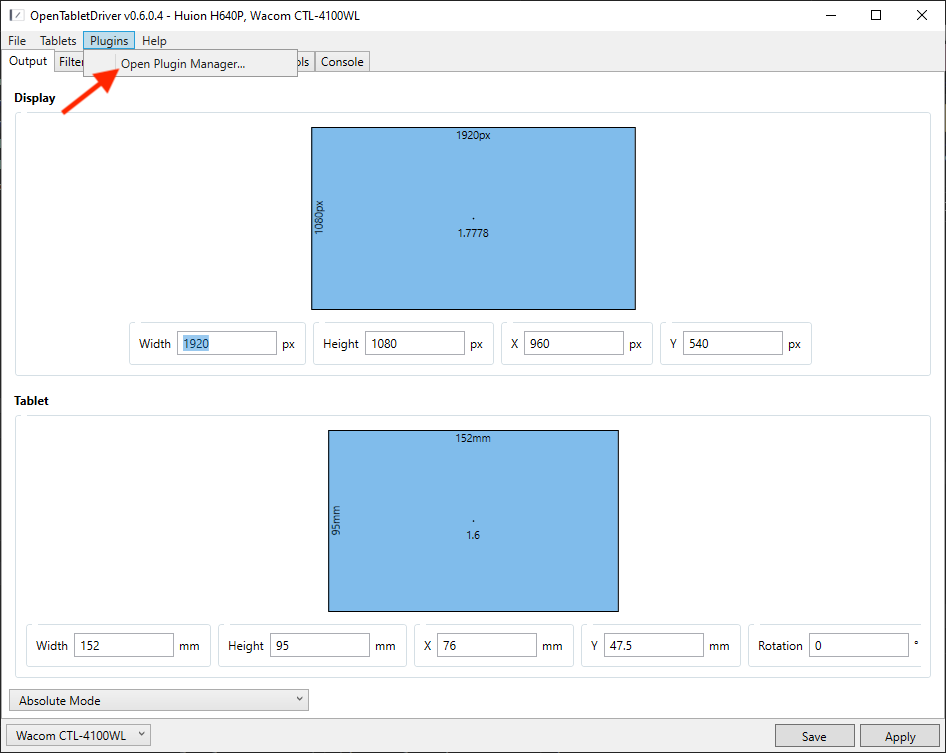
Open OpenTabletDriver, then open its plugin manager:
Find ‘OpenKneeboard OTD-IPC’ in the list, and click Install:
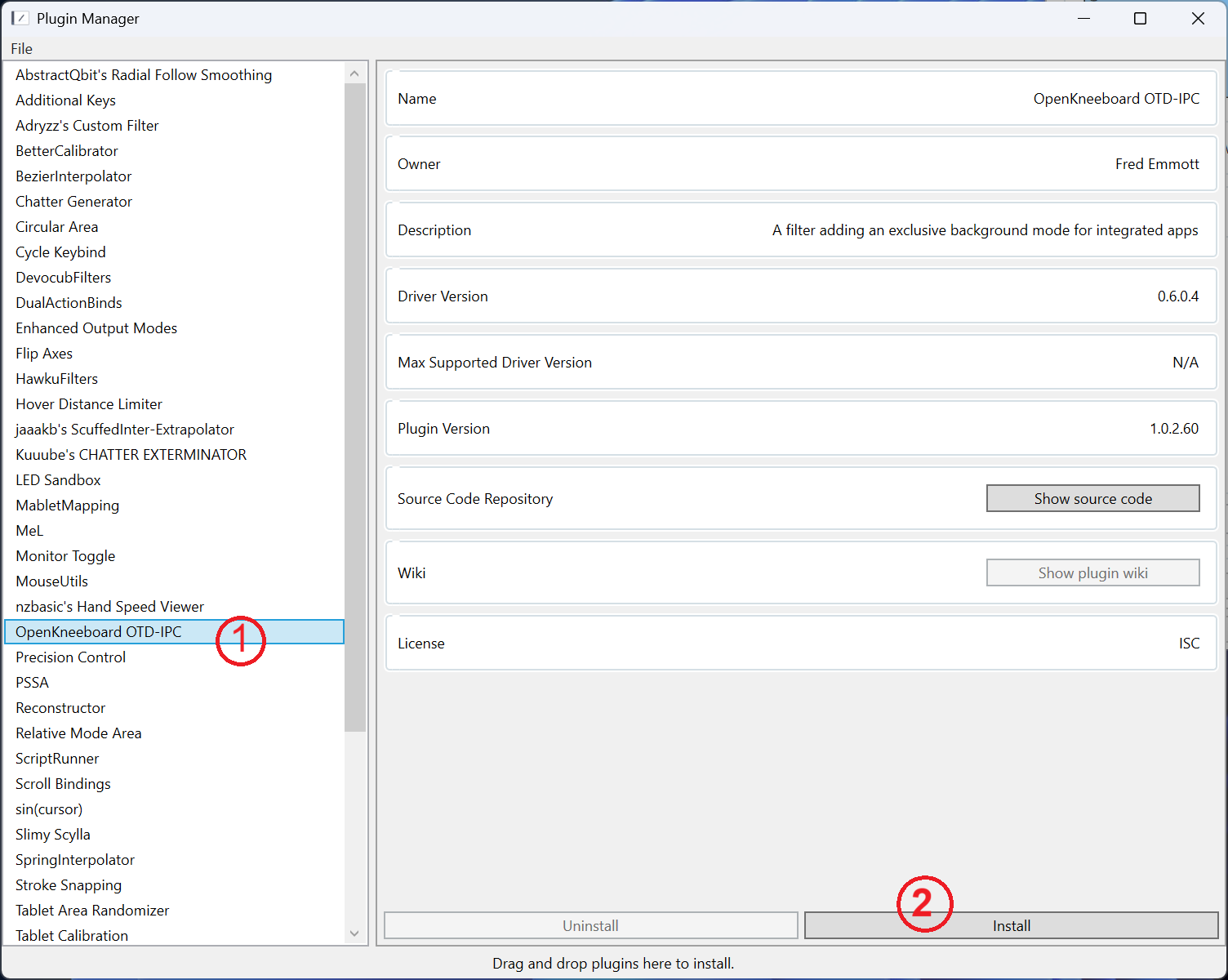
Finally, close the plugin manager window.
Enabling OpenKneeboard OTD-IPC
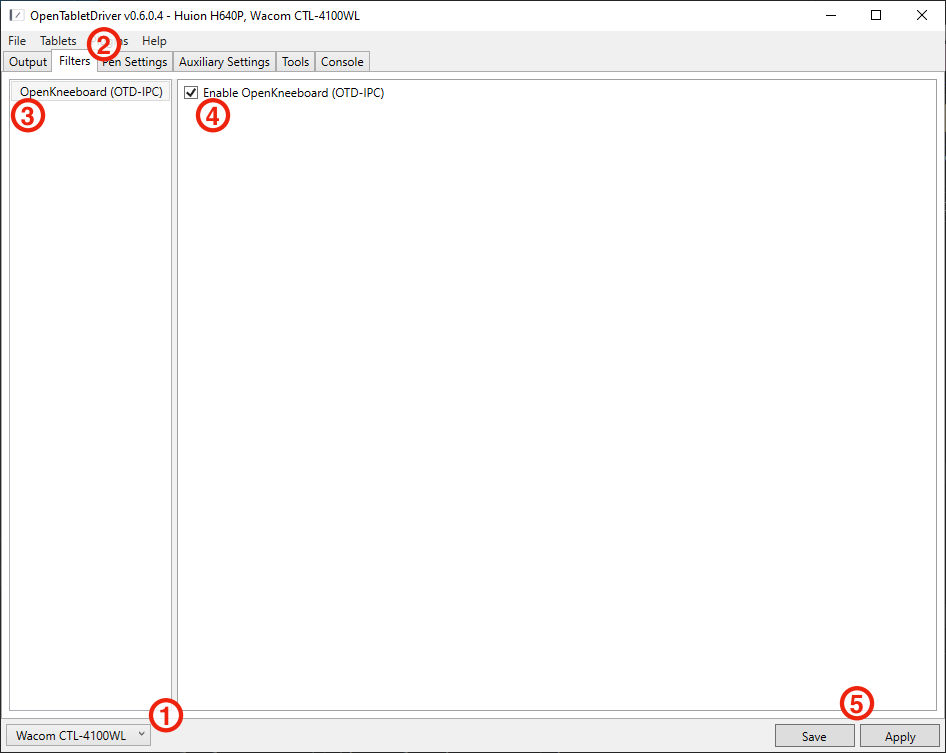
- Select the tablet you want to use with OpenKneeboard in the bottom left
- Switch to the filters tab
- Select OpenKneeboard
- Tick the ‘Enable OpenKneeboard (OTD-IPC)’ box
- Click both ‘Save’ AND ‘Apply’; if you do not click ‘Save’, OpenTabletDriver will not load OTD-IPC when it next starts
Repeat these steps for each tablet that you want to use with OpenKneeboard.
When OpenKneeboard (or another application using OTD-IPC) is active, everything you do with the tablet will be sent to OpenKneeboard instead of your usual OpenTabletDriver output and bindings.
OpenTabletDriver is only active while OpenTabletDriver is running; if you close OpenTabletDriver, your tablet will not work in game or in the OpenKneeboard window. You might want OpenTabletDriver to automatically start.